Practical guide
How to edit Kodi add-on settings from a browser
Install Kodi Manager inside Kodi, connect its dashboard from your home network and search for the setting. Enable writes only when you are ready to change a supported value.
This is useful when navigating a long add-on settings dialog with the TV remote is awkward. The browser dashboard shows supported saved values and defaults, while backups provide a way back from edits.
1. Install and connect without enabling edits
Use the Kodi repository source and installation steps. You can do this with the TV remote; browser-only setup needs neither ADB nor an AI assistant.
In Kodi Manager → Configure → Dashboard, turn on Allow LAN access. Leave Enable writes off. Open the Kodi Manager tile from Video add-ons and choose Open the dashboard on another device. Use the displayed address and private token in your phone or computer browser.
Keep Kodi active and use the same trusted home network. The dashboard uses plain HTTP. Keep its token and sign-in links private; do not put them in an issue or screenshot.
2. Find the add-on and setting
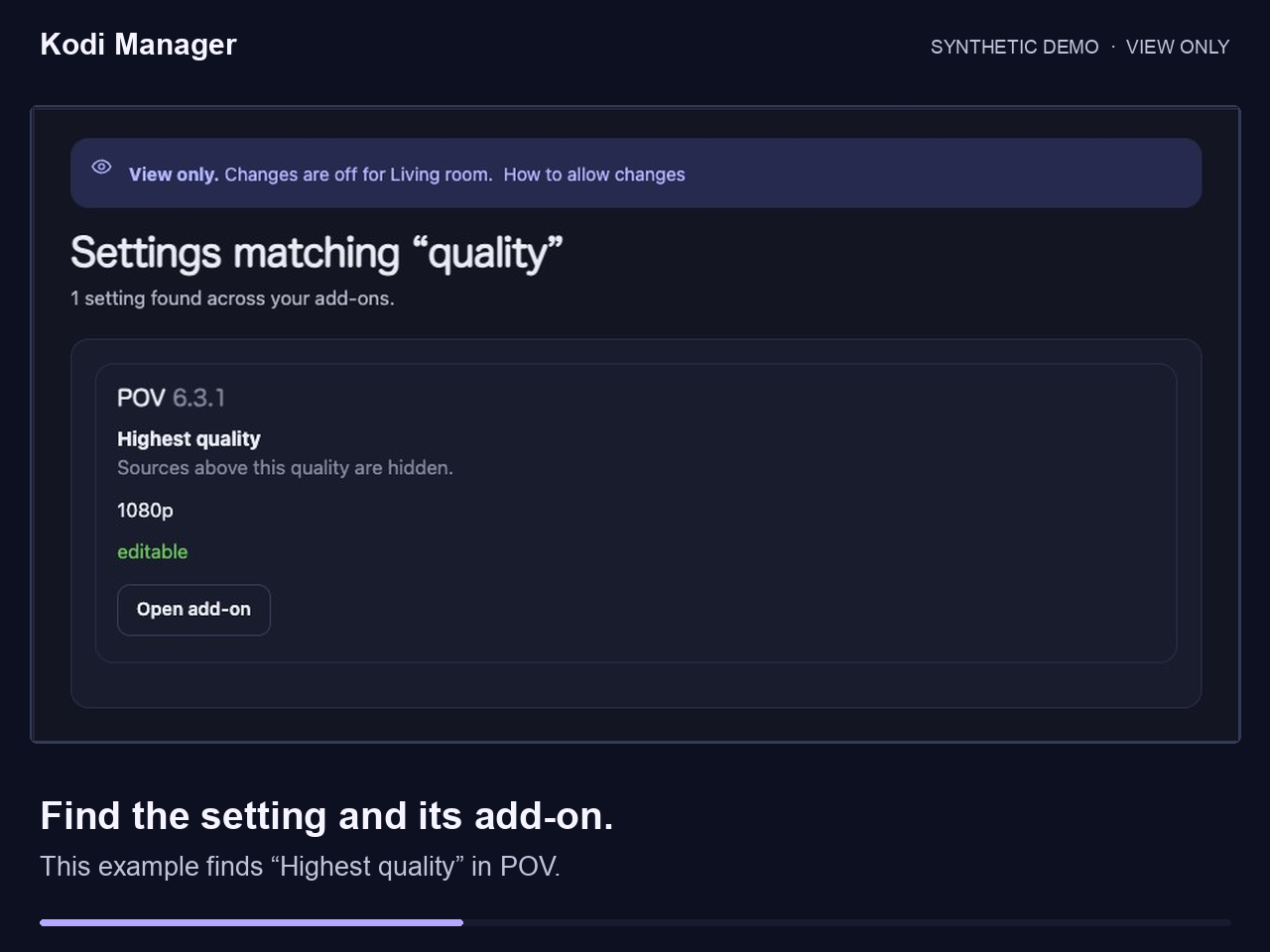
Type a word from the setting you need, such as quality, into the Search settings box at the top of the dashboard. Open the matching add-on, inspect the saved value and compare it with the default. Confirm the add-on and setting label before deciding to change anything.
3. Check scope before saving
Each Kodi profile has its own configuration. Confirm which profile is active on the TV; a change in one profile does not establish the same setting in another. After switching profiles, connect with the token for the newly active profile.
Editing depends on supported setting schemas or adapters and the detected stack or add-ons explicitly allowed in Manager's settings. A visible field is not a promise that every provider, credential or custom control can be edited. Use the add-on's own setup when the dashboard cannot safely express the setting.
4. Make one reversible change
When viewing has finished, enable Enable writes in Kodi Manager's TV settings. Change one supported value and save. Kodi Manager backs up the existing configuration before writing. Check the add-on's actual behavior afterward; some add-ons reload settings only on reopening or restarting.
If the result is wrong, open the add-on's Backups tab or find it under Backups → Single add-on backups. Inspect the appropriate backup and restore it. A restore also keeps undo backups. See the full backup and restore workflow for scope and limitations.
When another tool is enough
For core Kodi settings or browser media controls, Chorus2 may already cover the task. For a phone playback remote, start with Kore or Yatse. Compare their roles before installing another service.
Kodi Manager is a free MIT-licensed preview targeting Kodi 19+. Live validation is limited to one customized Shield; other devices and the public ZIP still need live installation checks.